CLI
CS:DM comes with a CLI (Command Line Interface) with multiple commands, allowing you to do tasks without running the GUI.
Installation
- Windows
- macOS
- Linux
The CLI is automatically installed when you install the application with the installer.
- Install the application following the installation guide
- From a terminal, run:
echo '\nexport PATH="/Applications/CS Demo Manager.app/Contents/Resources:$PATH"' >> ~/.zshrc - Restart your terminal
The above command assumes that the you are using the default macOS shell zsh (since macOS Catalina).
If you are using another shell, you have to replace ~/.zshrc with the correct configuration file.
- Install the application following the installation guide
- Find the path where the application is installed. It depends of your distribution, for example:
- Debian
dpkg -L cs-demo-manager(should be/opt/CS Demo Manager) - RPM
rpm -ql cs-demo-manager(should be/usr/share/cs-demo-manager)
- Debian
- From a terminal run (replace
/the/app/pathwith the real application path):
echo '\nexport PATH="/the/app/path:$PATH"' >> ~/.bashrc - Restart your terminal
The above command assumes that your shell is bash.
If you are using another shell, you have to replace ~/.bashrc with the correct configuration file.
Usage
- Windows
- macOS
- Linux
Open a Windows terminal and type csdm, it will display all available commands.
If you have a message csdm not found, it means that the folder where the CLI executable csdm.exe is located is not in your PATH environment variable.
The default path is C:\Users\Username\AppData\Programs\CS Demo Manager and you can follow this guide to add it to your PATH variable.
Open a terminal and type csdm, it will display all available commands.
If you have a message command not found, it means the folder where the CLI executable csdm is located is not in your PATH environment variable.
Please follow the installation instructions above.
Open a terminal and type csdm, it will display all available commands.
If you have a message command not found, it means the folder where the CLI executable csdm is located is not in your PATH environment variable.
Please follow the installation instructions above.
Download Valve demos
Download the last MM demos of the current Steam account or from share codes.
csdm dl-valve [shareCodes...] [--output]
You must be connected to your Steam account to use this command.
| Name | Default | Mandatory | Description |
|---|---|---|---|
| [shareCodes] | No | Share codes to download. | |
| --output | 1. Folder specified in the CS:DM settings 2. CS folder replays3. Current directory | No | Directory where demos will be downloaded. |
Examples
To download last MM demos of the current Steam account:
csdm dl-valve
To download demos from share codes:
csdm dl-valve CSGO-XXXXX-XXXXX-XXXXX-XXXXX-XXXXX CSGO-XXXXX-XXXXX-XXXXX-XXXXX-XXXXX
To change the directory where demos will be downloaded:
csdm dl-valve --output "C:\Users\username\Downloads"
Download FACEIT demos
This command is currently disabled, see here for details.
Download the last demos of the current FACEIT account set in the application or from its nickname.
csdm dl-faceit [--nickname] [--output]
| Name | Default | Mandatory | Description |
|---|---|---|---|
| --nickname | Account's nickname set in the application | No | Account's nickname to download demos. |
| --output | 1. Folder specified in the CS:DM settings 2. CS folder replays3. Current directory | No | Directory where demos will be downloaded. |
Examples
To download last FACEIT demos of the current FACEIT account:
csdm dl-faceit
To download demos of a specific account identified by its nickname:
csdm dl-faceit --nickname "PlayerNickname"
To change the directory where demos will be downloaded:
csdm dl-faceit --output "C:\Users\username\Downloads"
Download Renown demos
Download the last demos of the current Renown account set in the application or from a Steam ID.
csdm dl-renown [--steamid] [--output]
| Name | Default | Mandatory | Description |
|---|---|---|---|
| --steamid | Current account's Steam ID set in the application | No | Account's Steam ID to download demos. |
| --output | 1. Folder specified in the CS:DM settings 2. CS folder replays3. Current directory | No | Directory where demos will be downloaded. |
Examples
To download last Renown demos of the current Renown account:
csdm dl-renown
To download demos of a specific account identified by its Steam ID:
csdm dl-renown --steamid "PlayerSteamID64"
To change the directory where demos will be downloaded:
csdm dl-renown --output "C:\Users\username\Downloads"
Download 5EPLAY demos
Download the last demos of the current 5EPLAY account set in the application or from its ID.
csdm dl-5eplay [--id] [--output]
| Name | Default | Mandatory | Description |
|---|---|---|---|
| --id | Current account's 5EPLAY ID set in the application | No | Account's 5EPLAY ID to download demos. |
| --output | 1. Folder specified in the CS:DM settings 2. CS folder replays3. Current directory | No | Directory where demos will be downloaded. |
To find your 5EPlay ID:
- Log in to your 5EPlay account.
- Go to your profile page.
- Copy the last segment of the URL. For example, if your profile URL is
https://arena.5eplay.com/data/player/1111, your 5EPlay ID is1111.
Examples
To download last 5EPlay demos of the current 5EPLAY account:
csdm dl-5eplay
To download demos of a specific account identified by its ID:
csdm dl-5eplay --id "Player5EPLAYID"
To change the directory where demos will be downloaded:
csdm dl-5eplay --output "C:\Users\username\Downloads"
Analyze demos
Analyze demos and persist them in the database.
csdm analyze demoPaths... [--source] [--force]
| Name | Default | Mandatory | Description |
|---|---|---|---|
| demoPaths | Yes | Demos paths, can be either a .dem files path or a directory. It can be relative or absolute. | |
| --source | No | Force the analysis logic of the demo analyzer. Available values: challengermode,ebot,esea,esl,esportal,faceit,fastcup,5eplay,perfectworld,popflash,valve | |
| --force | false | No | Force demo analysis even if they are already in the database. |
Examples
Analyze 1 demo:
csdm analyze "C:\Users\username\Desktop\demo.dem"
Analyze multiple demos:
csdm analyze "C:\Users\username\Desktop\demo.dem" "C:\Users\username\Desktop\demo2.dem"
Analyze all demos in a directory using the ESL analyzer and re-analyze demos that have already been analyzed:
csdm analyze "C:\Users\username\Desktop\MyFolder" --source esl --force
Export demos to XLSX
Analyze and export demos to either a single or multiple XLSX files.
csdm xlsx demoPaths... [--output-folder] [--source] [--single] [--sheets] [--force-analyze]
| Name | Default | Mandatory | Description |
|---|---|---|---|
| demoPaths | Yes | Demos paths, can be either a .dem files path or a directory. It can be relative or absolute. | |
| --source | No | Force the analysis logic of the demo analyzer. Available values: challengermode,ebot,esea,esl,esportal,faceit,fastcup,5eplay,perfectworld,popflash,valve | |
| --output-folder | Current directory | No | Directory where output files will be saved. |
| --single | false | No | Generates a single XLSX file instead of one per demo. |
| --sheets | All sheets | No | Includes only sheets identified by its name. Available values: [general,players,rounds,kills]. |
| --force-analyze | false | No | Force demo analysis even if they are already in the database. |
Examples
Export 1 demo:
csdm xlsx "C:\Users\username\Desktop\demo.dem"
Export multiple demos with only the "Rounds" and "Kills" sheets:
csdm xlsx "C:\Users\username\Desktop\demo.dem" "C:\Users\username\Desktop\demo2.dem" --sheets rounds,kills
Export all demos in a directory using the ESL analyzer and save it in a custom directory:
csdm xlsx "C:\Users\username\Desktop\MyFolder" --output-folder "C:\Users\username\Documents" --source esl
Export demos to JSON
Analyze and export demos into JSON files.
csdm json demoPaths... [--output-folder] [--source] [--minify] [--force-analyze]
| Name | Default | Mandatory | Description |
|---|---|---|---|
| demoPaths | Yes | Demos paths, can be either a .dem files path or a directory. It can be relative or absolute. | |
| --source | No | Force the analysis logic of the demo analyzer. Available values: challengermode,ebot,esea,esl,esportal,faceit,fastcup,5eplay,perfectworld,popflash,valve | |
| --output-folder | Current directory | No | Directory where output files will be saved. |
| --minify | false | No | Minify the JSON files. |
| --force-analyze | false | No | Force demo analysis even if they are already in the database. |
Examples
Export 1 demo:
csdm json "C:\Users\username\Desktop\demo.dem"
Export multiple demos in a custom directory and minify the JSON files:
csdm json "C:\Users\username\Desktop\demo.dem" "C:\Users\username\Desktop\demo2.dem" --output-folder "C:\Users\username\Documents" --minify
Generate videos
Generate videos from demos.
- It is recommended to read the video documentation before using this command.
- Third-party software will be downloaded automatically if not already installed.
- Demos must have been analyzed and be present in the database.
There are 3 ways to invoke this command:
- By specifying a tick range
csdm video <demoPath> <startTick> <endTick> [options] - By focusing on player events (it will auto-generate sequences)
csdm video <demoPath> --mode player --steamids <id1,id2> --event <event> [options] - By using a JSON config file
csdm video --config-file <path> [options]
| Name | Default | Mandatory | Description |
|---|---|---|---|
| demoPath | Yes | Path to the .dem file to record from (or provided via --config-file). | |
| startTick | Yes* | Start tick of the sequence to record. Required unless using --mode player or --config-file. | |
| endTick | Yes* | End tick of the sequence to record. Required unless using --mode player or --config-file. | |
| --config-file <path> | No | Path to a JSON config file. Supports comments; must include demoPath. | |
| --output <path> | Demo folder | No | Output folder path (short -o). Defaults to demo directory. |
| --framerate <number> | CS:DM settings | No | Output frame rate. |
| --width <number> | CS:DM settings | No | Output width in pixels (min 800). |
| --height <number> | CS:DM settings | No | Output height in pixels (min 600). |
| --close-game-after-recording | CS:DM settings | No | Close the game when recording finishes. |
| --no-close-game-after-recording | CS:DM settings | No | Do not close the game after recording. |
| --concatenate-sequences | CS:DM settings | No | Concatenate recorded sequences into a single video. |
| --no-concatenate-sequences | CS:DM settings | No | Export each recorded sequence separately. |
| --encoder-software <string> | CS:DM settings | No | Software encoder. Allowed values: FFmpeg, VirtualDub. |
| --recording-system <string> | CS:DM settings | No | Recording system. Allowed values: HLAE, CS. |
| --recording-output <string> | CS:DM settings | No | Output type. Allowed values: video, images, images-and-video. |
| --ffmpeg-executable-path <string> | CS:DM settings | No | Path to FFmpeg executable. |
| --ffmpeg-crf <number> | CS:DM settings | No | FFmpeg CRF (quality). Lower = higher quality (0–51). |
| --ffmpeg-audio-bitrate <number> | CS:DM settings | No | FFmpeg audio bitrate in kbps (min 8). |
| --ffmpeg-video-codec <string> | CS:DM settings | No | FFmpeg video codec (e.g., libx264, libx265). |
| --ffmpeg-audio-codec <string> | CS:DM settings | No | FFmpeg audio codec (e.g., aac, libopus). |
| --ffmpeg-video-container <string> | CS:DM settings | No | Output container. Allowed values: mp4, avi, mkv. |
| --ffmpeg-input-parameters <string> | CS:DM settings | No | Extra FFmpeg input parameters. |
| --ffmpeg-output-parameters <string> | CS:DM settings | No | Extra FFmpeg output parameters. |
| --show-x-ray | CS:DM settings | No | Enable X-Ray during recording. |
| --no-show-x-ray | CS:DM settings | No | Disable X-Ray during recording. |
| --show-assists | CS:DM settings | No | Show assists in HUD. |
| --no-show-assists | CS:DM settings | No | Hide assists in HUD. |
| --show-only-death-notices | CS:DM settings | No | Show only death notices HUD. |
| --no-show-only-death-notices | CS:DM settings | No | Show full HUD (not only death notices). |
| --record-audio | CS:DM settings | No | Record game audio. |
| --no-record-audio | CS:DM settings | No | Do not record game audio. |
| --player-voices | CS:DM settings | No | Enable in-game player voices. |
| --no-player-voices | CS:DM settings | No | Disable in-game player voices. |
| --death-notices-duration <number> | CS:DM settings | No | Duration in seconds of death notices. |
| --cfg <string> | CS:DM settings | No | Plain text config executed before recording. |
| --focus-player <steamID64> | - | No | Focus on a specific player by their SteamID64. |
Player mode
The --mode player option auto-generates sequences around player events.
| Name | Default | Mandatory | Description |
|---|---|---|---|
| --mode player | Yes | Enable player mode. | |
| --steamids <id1,id2,...> | Yes | Comma-separated SteamID64s to build sequences for. | |
| --event <string> | Yes | Event type. Allowed values: kills, deaths, rounds. | |
| --perspective <string> | player | No | Camera's perspective. Allowed values: player, enemy. |
| --rounds <n,n,...> | No | Comma-separated round numbers to filter. | |
| --start-seconds-before <n> | 2 | No | Seconds before event to start sequence. |
| --end-seconds-after <n> | 2 | No | Seconds after event to end sequence. |
Config file
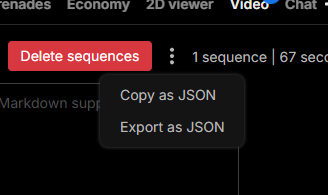
You can use a JSON config file to configure all recording options. The easiest way to generate one and see all possible options is to export one from the application by clicking on the 3-dot menu in the Video view and clicking on Export as JSON.
Example as of version 3.17.0:
{
  "demoPath": "C:\\Users\\USERNAME\\demos\\my-demo.dem",
  "outputFolderPath": "C:\\Users\\USERNAME\\Desktop",
  "recordingSystem": "CS",
  "recordingOutput": "video",
  "encoderSoftware": "FFmpeg",
  "width": 1280,
  "height": 720,
  "framerate": 30,
  "closeGameAfterRecording": true,
  "concatenateSequences": false,
  "ffmpegSettings": {
    "audioBitrate": 256,
    "constantRateFactor": 23,
    "customLocationEnabled": false,
    "customExecutableLocation": "",
    "videoContainer": "avi",
    "videoCodec": "libx264",
    "audioCodec": "libmp3lame",
    "inputParameters": "",
    "outputParameters": ""
  },
  "sequences": [
    {
      "number": 1,
      "startTick": 1351,
      "endTick": 4675,
      "showOnlyDeathNotices": true,
      "deathNoticesDuration": 5,
      "playersOptions": [
        {
          "steamId": "STEAM_ID_REDACTED",
          "playerName": "Player 1",
          "showKill": true,
          "highlightKill": false,
          "isVoiceEnabled": true
        }
      ],
      "playerCameras": [
        {
          "tick": 2227,
          "playerSteamId": "STEAM_ID_REDACTED",
          "playerName": "Player 1"
        }
      ],
      "cameras": [
        {
          "tick": 3206,
          "id": "cf25dfc2-8d3b-4bf9-9c5f-f6c729579b6c",
          "name": "Top mid",
          "color": "#FDCB6E"
        }
      ],
      "showXRay": true,
      "showAssists": true,
      "playerVoicesEnabled": true,
      "recordAudio": true
    }
  ]
}
Examples
Record a video from tick 1200 to 4000 and use current CS:DM video settings:
csdm video "E:\cs\demo.dem" 1200 4000
Record a 1080p60 MP4 using FFmpeg:
csdm video "E:\cs\demo.dem" 1200 4000 --framerate 60 --width 1920 --height 1080 --encoder-software FFmpeg --ffmpeg-video-container mp4
Use HLAE + FFmpeg, disable X-Ray and focus on a specific player:
csdm video "E:\cs\demo.dem" 1200 4000 --recording-system HLAE --encoder-software FFmpeg --no-show-x-ray --focus-player 76561198000697560
Generate sequences for specific players’ kills in rounds 5–10:
csdm video "E:\cs\demo.dem" --mode player --steamids 76561198000697560,76561198000000000 --event Kills --rounds 5,6,7,8,9,10 --start-seconds-before 3 --end-seconds-after 3
Use a JSON config file (JSONC allowed) to drive recording:
csdm video --config-file "E:\configs\record.jsonc" --encoder-software FFmpeg
Example record.jsonc:
{
  // Required demo path
  "demoPath": "E:\\cs\\demo.dem",
  // Optional overrides (fallback to CS:DM settings)
  "framerate": 60,
  "width": 1920,
  "height": 1080,
  "concatenateSequences": true,
  "ffmpegSettings": {
    "videoCodec": "libx264",
    "videoContainer": "mp4",
  },
}